Messenger Channel
Use a Messenger channel when your audience already messages your Facebook Page and you want the agent to receive and answer directly in Messenger.
For Codeer, the important live endpoint is the Webhook URL. Publishing a Messenger channel mostly controls whether Codeer starts processing Messenger webhook events. The bound agent still answers with its current published version.
What you need before you start
- One agent with at least one published version
- Permission to edit channels in the workspace
- A Facebook Page you can manage
- A Meta app
- Messenger or Messaging settings available in that Meta app
- An access token that can send Page messages
- A public HTTPS Codeer environment
Why public HTTPS matters
Meta only accepts webhooks that are reachable over public HTTPS. If the Webhook URL from Codeer is not publicly reachable, Meta will fail at the webhook verify step.
What you will prepare in Meta
-
A
Meta app -
A
Facebook Pagethat will receive and send Messenger messages -
Messenger or Messaging settings
-
A webhook configuration whose callback URL points to Codeer's
Webhook URL -
A subscription for the Page's messaging events
-
An access token that can send messages as that Page
Keep the Page, token, and webhook subscription aligned
Codeer checks incoming webhook events against the Facebook Page ID you enter for this channel. If the Page ID, Page access token, and webhook subscription do not belong to the same Page, messages may be ignored or Codeer may fail to reply.
Full setup flow
-
Create the Codeer Messenger channel and copy the Webhook URL
- In Codeer, publish the target agent from
Editorfirst. - Open
Channels. - Click
New Channel. - Choose
Messenger. - Give the channel a stable
NameandSlug. - In the Messenger channel
Configuration, copy theWebhook URL. - Do not publish the Codeer Messenger channel yet. First collect the required Meta-side values, save them in Codeer, and then return to Meta to configure and verify the webhook.
- In Codeer, publish the target agent from
-
Add Messenger or Messaging settings to the Meta app
- Open Meta for Developers.
- Open the Meta app you want to use for Messenger.
- Add the Messenger or Messaging product or use case.
- Connect the Facebook Page that users will message.
- Confirm that the app has permission to manage messages for that Page.
Meta dashboard labels may change
Meta changes App Dashboard navigation and use case names over time. The important parts are: the app is connected to the right Page, webhook verification works, and the token can send Messenger messages as that Page.
-
Get the Facebook Page ID
- Find the Page ID in Facebook Page settings, Meta Business Suite, Meta App Dashboard, or Graph API tooling.
- Copy the ID. You will paste it into Codeer as
Facebook Page ID.
-
Create a Webhook Verify Token
- Generate a hard-to-guess string for this channel's
Webhook Verify Token. - Keep it ready. You will enter the same value in Meta's webhook settings and in the Codeer form.
Verify Token is not the Page access token
Webhook Verify Tokenis a shared string you choose for Meta webhook verification.Page access tokenis the token Codeer uses to send messages as the Facebook Page. Do not reuse one as the other. - Generate a hard-to-guess string for this channel's
-
Copy the Meta App Secret
- In Meta App Dashboard, open
App Settings>Basic. - Find and copy
App Secret. - You will paste it into Codeer as
Meta App Secret.
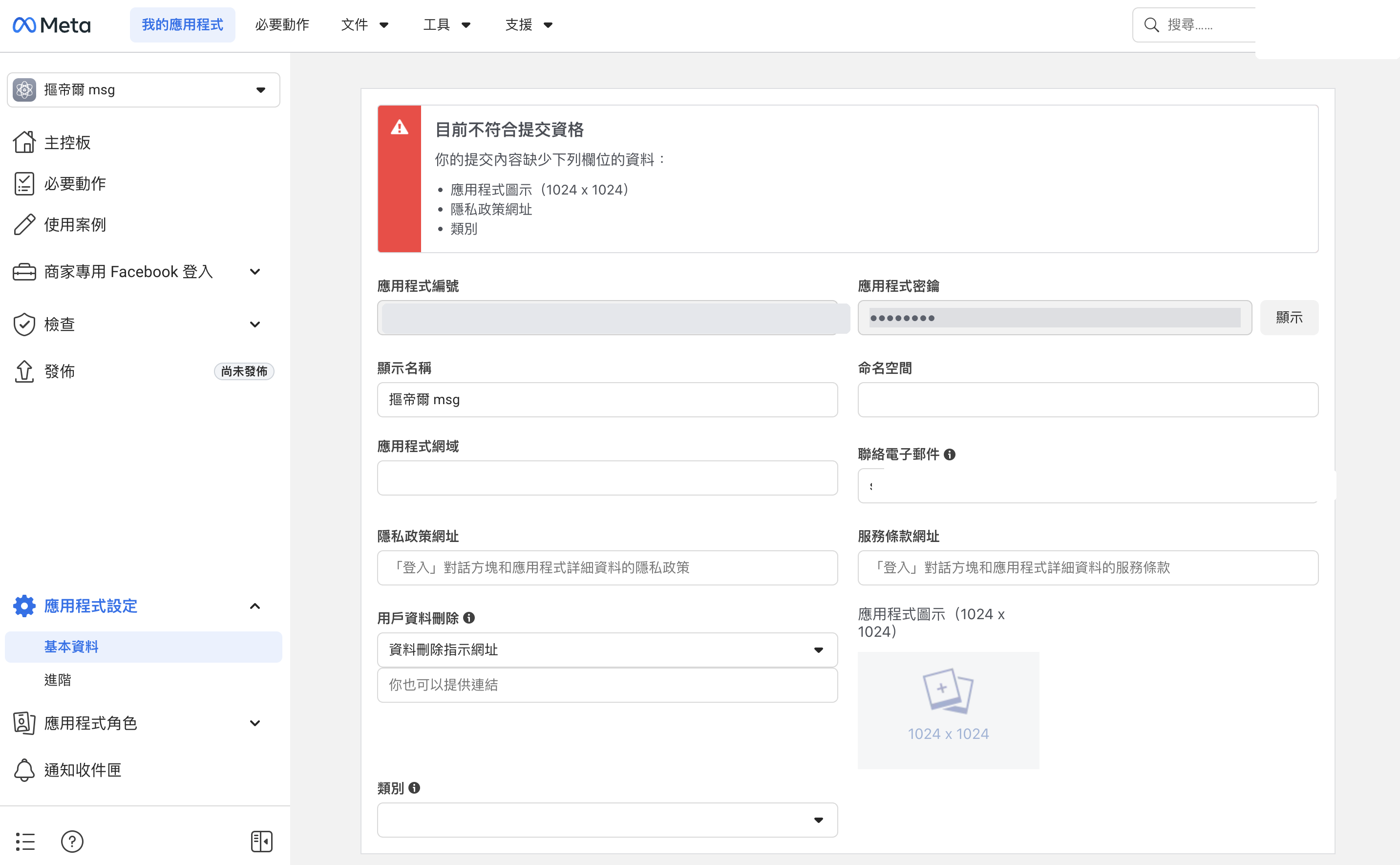
Codeer uses App Secret to verify webhook signatures
When Messenger webhooks reach Codeer, Codeer uses
Meta App Secretto verifyX-Hub-Signature-256. If the App Secret is wrong, events will be ignored. - In Meta App Dashboard, open
-
Create or get the Page access token
- In Meta App Dashboard, Graph API Explorer, or your existing Meta token flow, get an access token that can send messages as the Facebook Page.
- Confirm that the token belongs to the same Page you entered in Codeer as
Facebook Page ID. - You will paste it into Codeer as
Access Token.
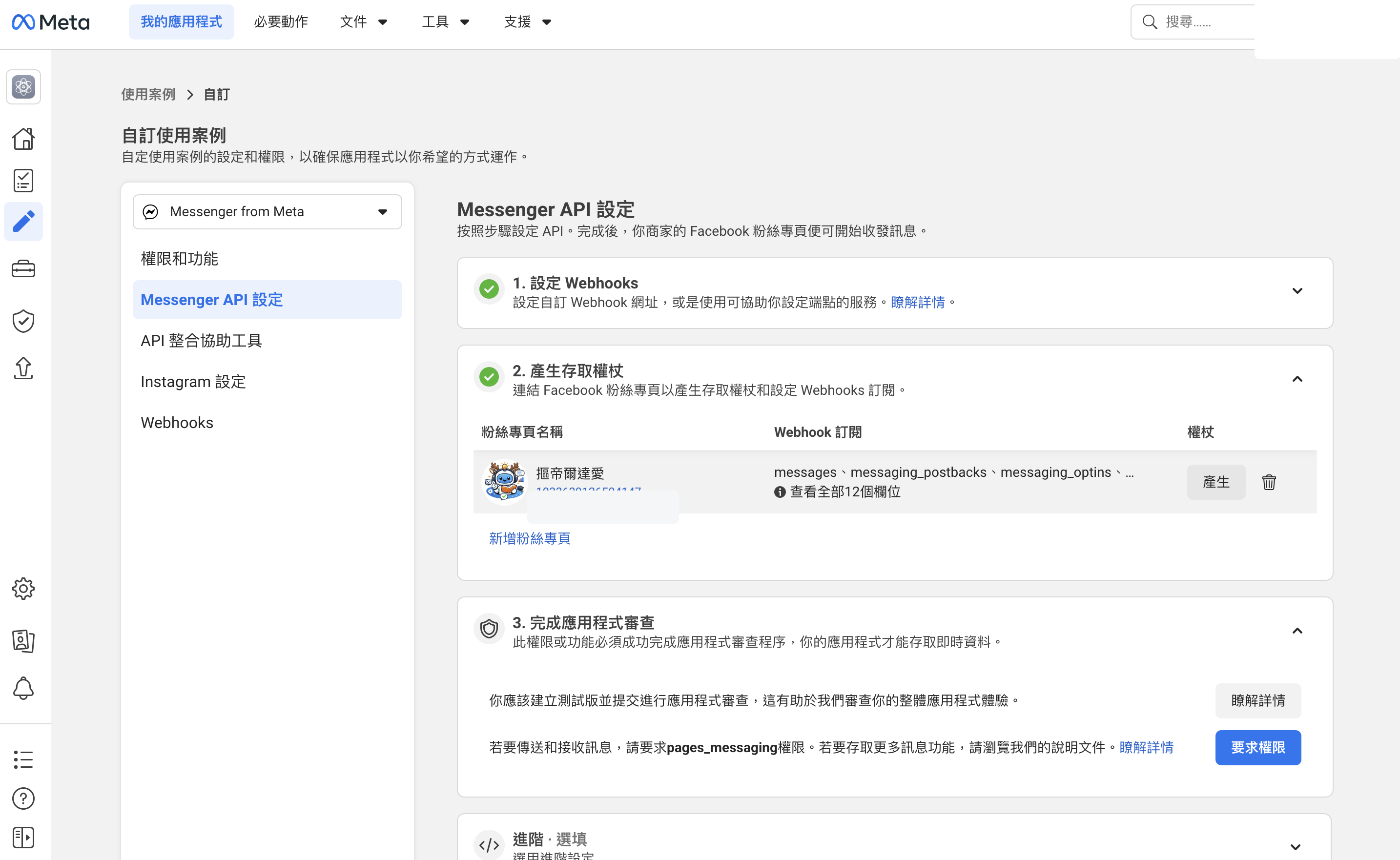
Confirm token and permission status before production
If the app is still in development mode or you only have a test token, testing may be limited to people with app roles. Before serving normal users, confirm that the Meta app, permissions, and token match your production rollout plan.
-
Save the Messenger configuration in Codeer
- Return to the Codeer Messenger channel.
- In
Configuration, enter:Facebook Page IDWebhook Verify TokenMeta App SecretAccess Token
- Choose the published agent that should answer Messenger messages.
- Set
Conversation Session Timeoutif you want inactivity to start a fresh conversation. The default is24hours, and the allowed range is1to720hours. - Save the configuration.
Save the Verify Token before verifying the webhook in Meta
When Meta verifies the webhook, it calls Codeer's
Webhook URLwith the verify token you entered in Meta. Codeer compares that value with theWebhook Verify Tokenalready saved on the channel, so this step must happen before Meta verify / save.Only published agents appear in the selector
If the agent is missing, go back to
Editor, publish it, and then return to the Messenger channel page. -
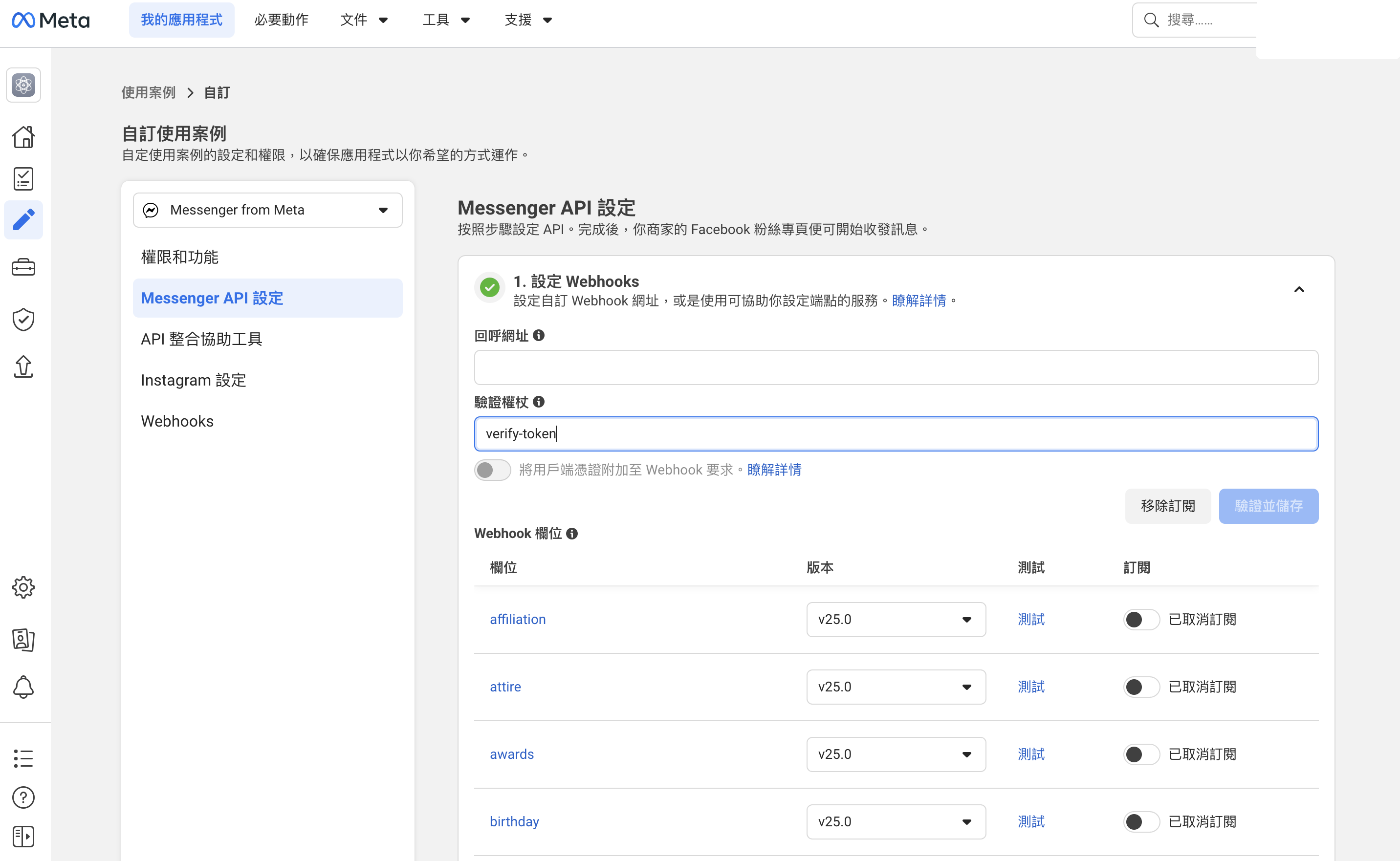
Configure the webhook in Meta
- In the Meta app's Messenger / Webhooks settings, add a callback.
- Paste Codeer's
Webhook URLintoCallback URL. - Enter the
Webhook Verify Tokenyou created earlier. - Click verify / save in Meta.
- After verification succeeds, subscribe the Facebook Page that should receive messages.
- Subscribe at least the Messenger messaging events so Codeer receives user messages.
-
Publish the Codeer Messenger channel
- After webhook, Page ID, credentials, and agent binding are ready, publish the channel.
- Use
Unpublishif you want Codeer to stop processing new Messenger events.
First live test
Before sharing the channel more widely, run through the full flow with a real Facebook account.
-
Open the Messenger conversation for the Facebook Page.
-
Send a realistic text message.
-
Confirm that Messenger receives the agent reply.
-
Go back to Codeer
Conversationsand confirm that the conversation is recorded. -
Confirm that the reply comes from the bound agent's latest published version.
If a Messenger user is inactive longer than the channel's Conversation Session Timeout, the next message starts a fresh conversation and the agent does not carry over the earlier context.
Troubleshooting
If Messenger is connected but the reply is wrong, check these in order:
-
The correct agent version is published.
-
The Messenger channel is published.
-
Meta webhook verification succeeded.
-
The webhook is subscribed to the correct Facebook Page.
-
Facebook Page IDbelongs to the same Page as the webhook event and Page access token. -
Webhook Verify Tokenexactly matches the value in Meta webhook settings. -
Meta App Secretcomes from the same Meta app. -
Access Tokenis still valid and can send messages as that Page.