Web Channel
Use a web channel when the agent is ready to face real users outside Live Test.
This page focuses on the hosted Web flow. If you are publishing to LINE, use Line Channel. If you are publishing to Slack, use Slack Channel.
For Consultation Desk, the safest order is simple:
- publish the agent version
- create or update the channel
- publish the channel
- open the live URL and test one real conversation
Step 1: Publish the agent version first
Open the target agent in Editor and click Publish.
This is what makes the agent behavior live. If you only create a channel, you may end up with a shareable URL that has no published agent behind it.
Step 2: Open Channels and create a new channel
Inside the workspace, open the Channels tab and click New Channel.
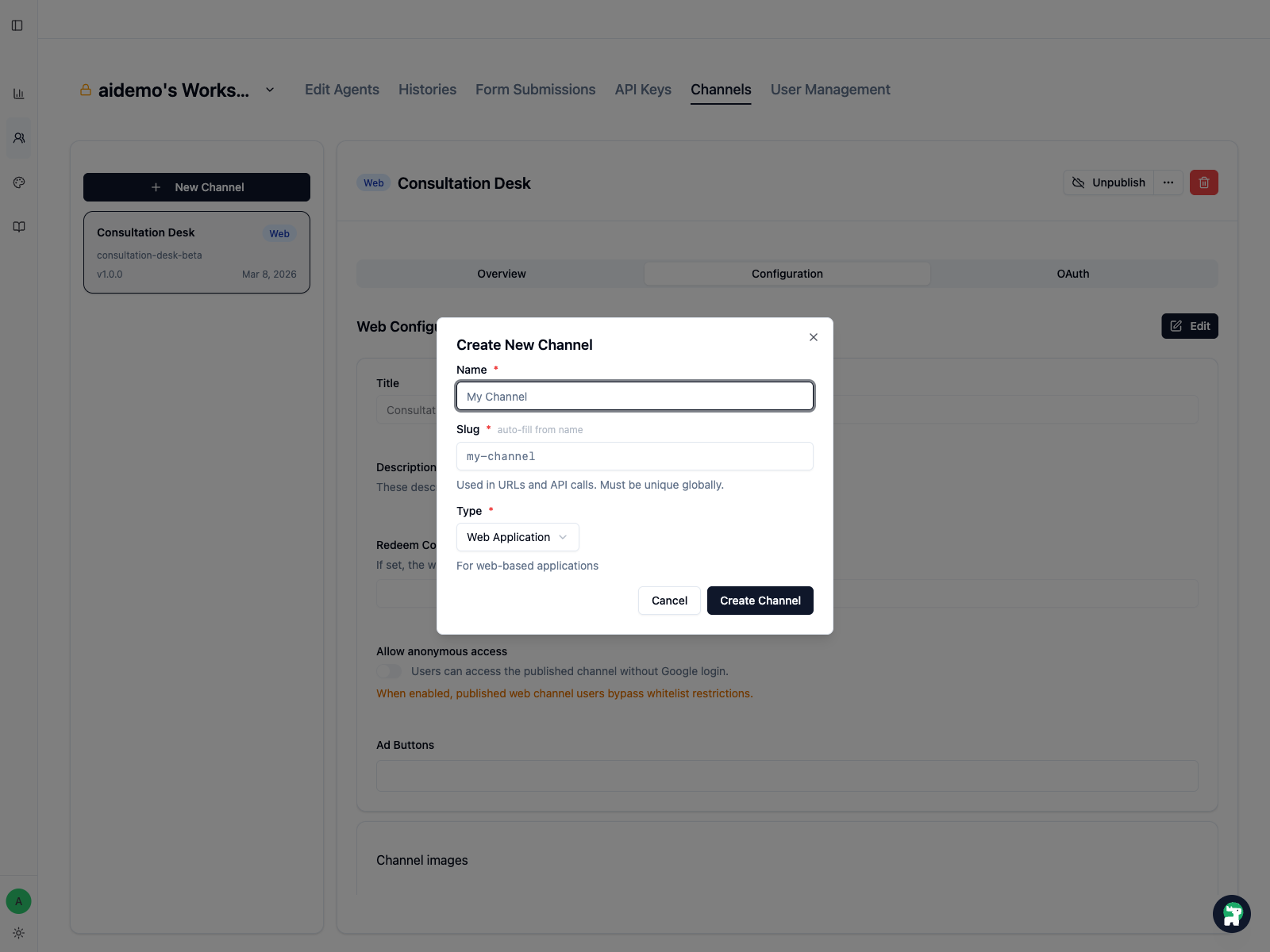
For a web experience, fill these fields carefully:
Name: the internal and visible name of the channelSlug: the stable identifier used in the live URLType: chooseWeb Applicationfor the hosted web client
Choose the slug carefully
Changing the slug later changes the live URL. Treat it as part of the public surface, not a temporary label.
Step 3: Review channel settings and publish the channel
After creation, review the channel detail page.
The main checkpoints are:
Overview: confirm the name, slug, status, URL, and live versionConfiguration: set the channel title and other web experience detailsOAuth: use this only when you intentionally need a branded login flow; complete the Brand, provider, and Channel binding in Brands & OAuth

If you changed channel settings that affect the live experience, publish the channel again.
Agent publish and channel publish solve different problems
Publish in Editor updates the live agent behavior. Publish in Channels updates the web surface and its settings. If you changed both, you need both publishes.
Step 4: Open the live URL and verify the experience
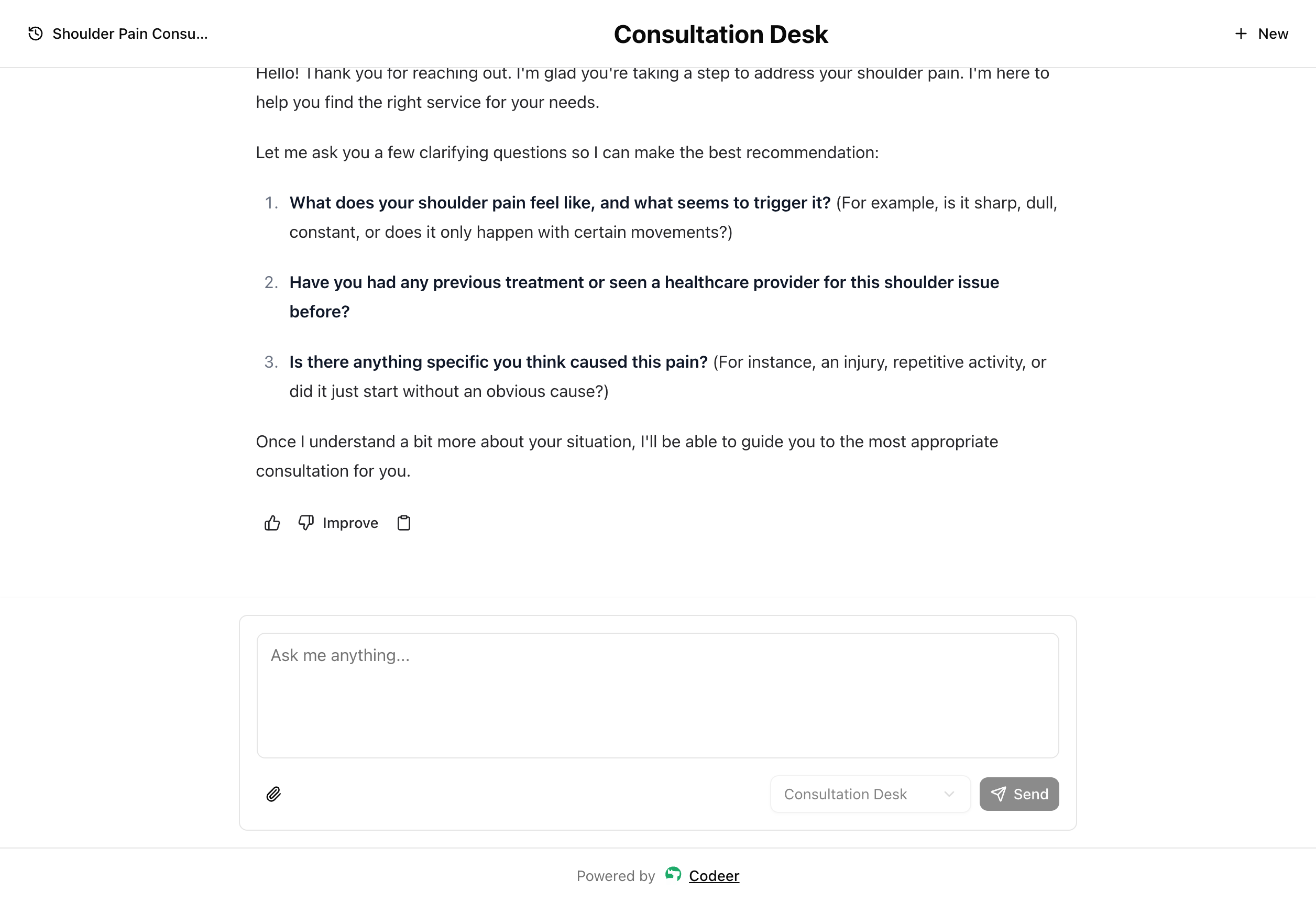
Once the channel is published, open the live URL and run at least one real conversation yourself.
Check these basics:
- the page loads correctly
- the right agent answers
- the response style matches the current version
- the feedback controls appear on agent messages
Controlled rollout
For stakeholder-only pilots, keep access control centered in Customers.
- Use
whitelistwhen you want a fixed audience. - Use open access only when you intentionally want a broader door.
- If you later add brand login or OAuth, treat that as a separate rollout decision.