Tool Configuration
Tools allow Agents to do more—query data, search the web, call other Agents, and even collect structured information.
What Are Tools?
By default, Agents can only answer questions based on Instructions and conversation context. With tools, Agents can:
- 📚 Query Knowledge Base: Retrieve information from uploaded documents or connected data sources
- 🌐 Search the Web: Access real-time information
- 🤖 Call Other Agents: Delegate different tasks to specialized agents
- 📝 Collect Forms: Guide users to fill in structured data
Where to Configure Tools
- In the Agent Editor's left panel, find the "Tools" section in the gray background area (Advanced Settings), and click "Add Tool".
- If tools have already been added, you'll see "Tool Names" directly. Each tool has an icon representing its type, and you can expand a tool to check its configuration.
Prerequisites
Before adding certain tools, you need to prepare corresponding resources:
- Knowledge Base: You need to connect data sources (Notion, Google Drive, etc.) in the workspace first
- Call Agent: You need to create and publish at least one Agent first
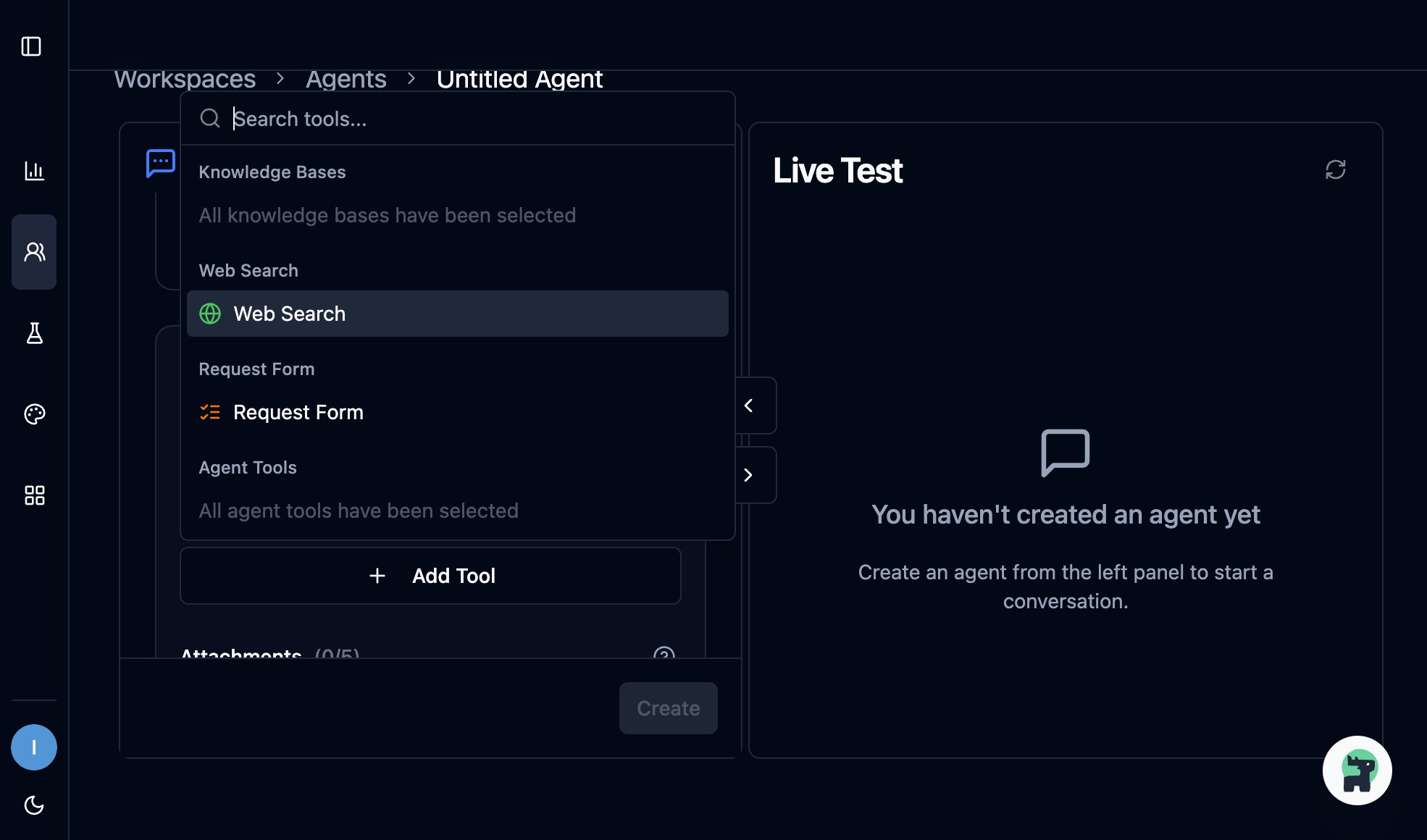
If there are no available resources in the workspace, the corresponding tool option will appear grayed out in the tool selector with a note "All XX selected" and cannot be added.
Prepare Resources First
- It's recommended to complete knowledge base setup or Agent creation before configuring tools.
Available Tools
| Tool | Function | Details |
|---|---|---|
| Knowledge Base | Query connected data sources | Knowledge Base |
| Web Search | Search the web for real-time information | Web Search |
| Call Agent | Call other Agents for assistance | Call Agent |
| Request Form | Collect structured form data | Request Form |
Adding Tools
Step 1: Open Tool Selector
Click the "Add Tool" button to open the tool selector, and you'll see a menu.
Step 2: Select a Tool
The tool selector displays available tool options, grouped by type:
- Knowledge Base: Shows connected but not yet selected data sources in the workspace (e.g., Notion, Google Drive)
- Web Search: Can be directly selected and added
- Form Tools: Can be directly selected and added
- Agent Tools: Shows Agents created but not yet selected in the workspace
You can quickly find a specific tool using the search box, or select directly from the list.
Already Selected Tools Won't Appear Again
- The tool selector automatically filters out tools that have already been added to avoid duplicate selection.
- For example, if you've already added a "Notion" knowledge base, you won't see the "Notion" option again in the tool selector.
Step 3: Configure Tool Parameters
Each tool type has different configuration items. Click confirm after completion.
Tool List Display
Added tools are displayed under the "Tools" section, grouped by type:
- 📚 Knowledge Base: Shows the name of selected data sources (e.g., Notion, Google Drive)
- 🌐 Web Search: Shows "Web Search" label, with domain restrictions displayed next to the label if configured
- 📝 Form Tools: Shows form title
- 🤖 Agent Tools: Shows target Agent name and version label
Each tool can be expanded to view detailed settings (such as "When to Use"), and can be removed by clicking the delete button.
When to Use
Each tool can have a "When to Use" configuration, telling the Agent when and how to use the tool.
Examples:
When users ask about product specifications, prices, or features, use this tool to query the product knowledge base.
Only use web search when users explicitly request the latest information.
Tool Quantity Limits
- Total tools: Maximum 10
- Call Agent: Maximum 5
This limit ensures that Agents can effectively select and use tools.
UI Hints
- When the tool quantity limit is reached, the "Add Tool" button will be disabled.
- If a certain type of tool (such as knowledge base or agent tools) has no available resources, that option will appear grayed out in the tool selector with a note "All XX selected".
Let Copilot Provide Suggestions
Copilot can suggest which tools should be added based on your needs:
My Agent needs to answer product questions and also check the latest market information.
What tools are needed?
Copilot can also suggest how to write "When to Use". You can ask Copilot:
I added a product knowledge base tool, please help me write When to Use

I created a web search tool, but it's not being triggered as expected. The situation just now was (describe the problem), please help me adjust When to Use
Tool Execution Order
When an Agent needs to call multiple tools:
- Tools are executed sequentially, not in parallel
- The Agent decides the next step based on each tool's results
Common Questions
How does the Agent know which tool to use?
The Agent decides based on: 1) Instructions in the Core Instruction, 2) When to Use for each tool, 3) The user's question content, automatically determining whether to use tools and which one.
What if a tool isn't being used?
Possible reasons:
- When to Use is not clear enough
- User's question didn't trigger the tool usage conditions
- Instruction didn't mention relevant scenarios
Try adjusting When to Use or explicitly specify tool usage timing in the Instruction.
Can tools execute automatically?
Currently, tools are executed by the Agent based on conversation context. If you want to query the knowledge base every time, you can explicitly specify this in the Instruction.
What happens if a selected knowledge base or Agent is deleted?
The system will automatically check and handle:
- If a selected knowledge base is deleted from the workspace, that tool will be automatically removed from the Agent configuration
- If a called Agent is deleted, that Call Agent tool will be automatically removed, and a notification message will be displayed
It's recommended to regularly check the Agent's tool configuration to ensure all tools are functioning properly.
Next Steps
Learn about detailed configuration for each tool:
- Knowledge Base - Connect your data sources
- Web Search - Search web information
- Call Agent - Collaborate through delegation
- Request Form - Collect structured data