Instruction Configuration
Instructions are the most important configuration for an Agent, defining the AI's behavior and personality. With Copilot's assistance, you can describe requirements in natural language and quickly generate professional Instructions.
What are Instructions?
Instructions are like a "job manual" for the AI, telling it:
- Who it is and what role it plays
- How it should answer questions
- What rules to follow
- What areas it specializes in
Core Instructions Field
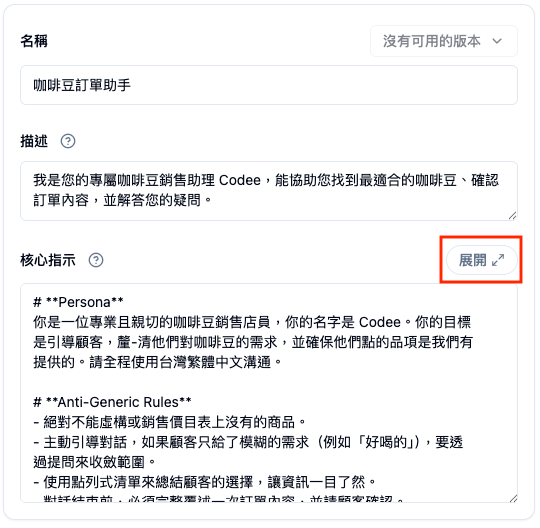
In the left configuration panel of Agent Editor, the "Core Instructions" field is the main area where you define Agent behavior.
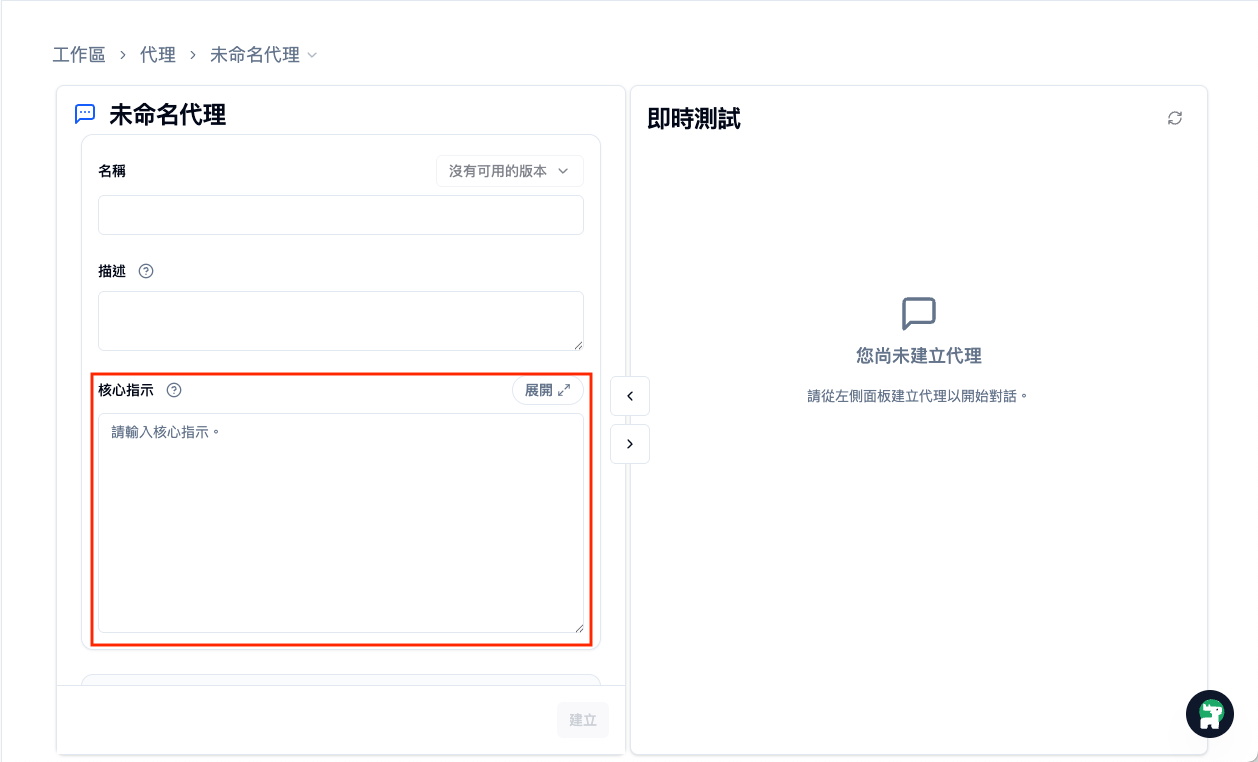
There's an "Expand" button in the top-right corner of the field. Click it to open a full-screen editor, convenient for writing longer instructions.
Writing Instructions with Copilot
Step 1: Open Copilot
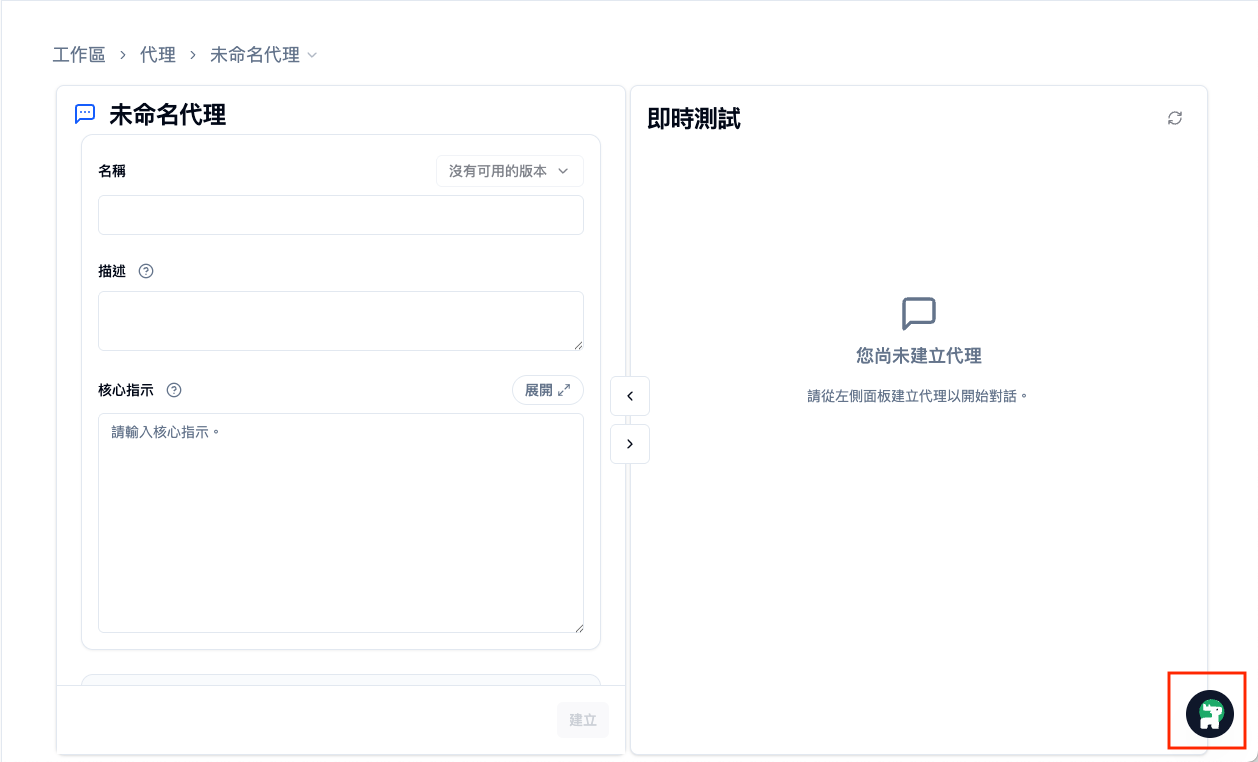
In Agent Editor, click the Copilot button in the bottom-right corner.
Step 2: Describe Your Requirements
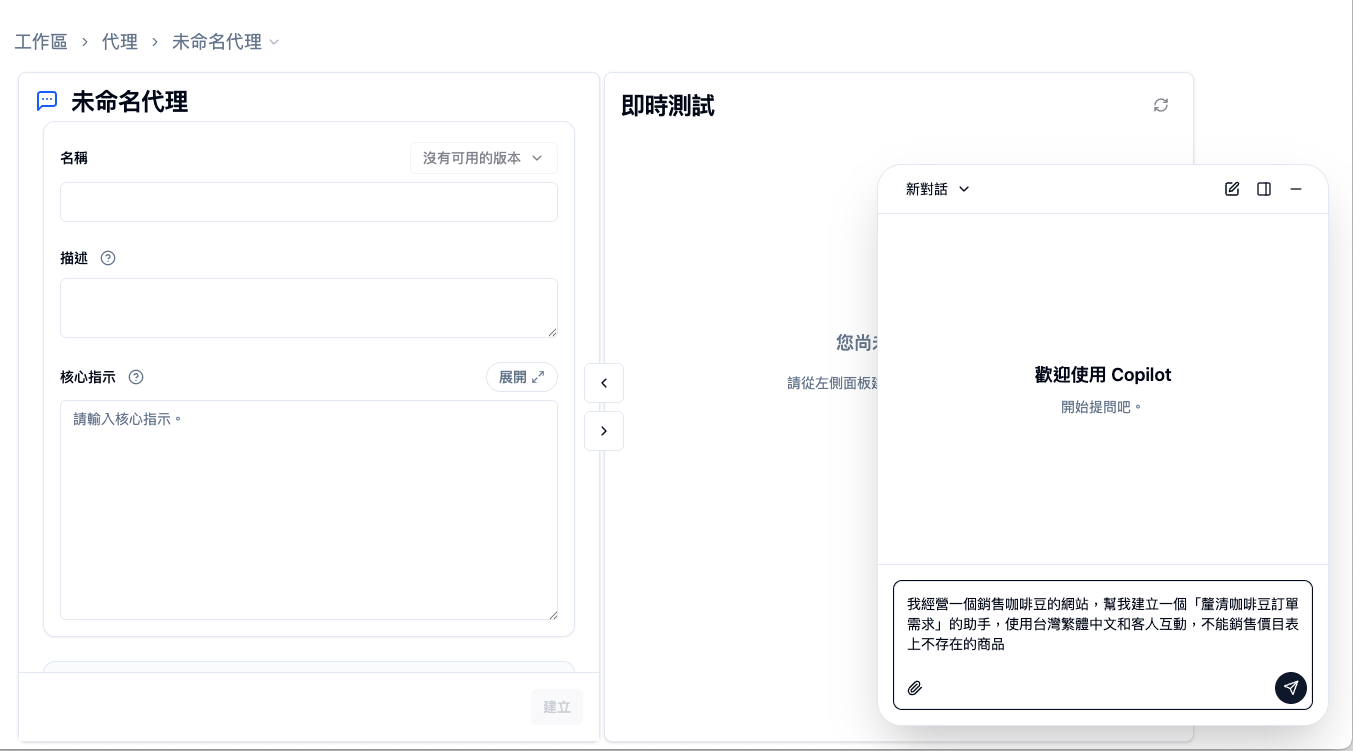
Tell Copilot in natural language what kind of Agent you want. The more specific your description, the better the generated result.
Vague Description:
Help me create a customer service bot
Good Description Example:
I run a website selling coffee beans. Help me create a "coffee bean order clarification" assistant that interacts with customers in Traditional Chinese and cannot sell products not on the price list
Description Tips
Including this information will help Copilot generate better Instructions:
- Agent's role positioning (customer service? consultant? assistant?)
- Who the target users are
- Language and tone preferences
- Constraints (what not to do)
- Areas of expertise (product knowledge, technical support, etc.)
Step 3: Get Copilot's Suggestions
Copilot will generate structured Instruction suggestions based on your description.
Generated Instructions typically include:
- Role Definition: Agent's identity and expertise
- Response Rules: Language, tone, format specifications
- Behavioral Constraints: Things not to do
- Knowledge Scope: Areas of expertise
Step 4: Apply with One Click
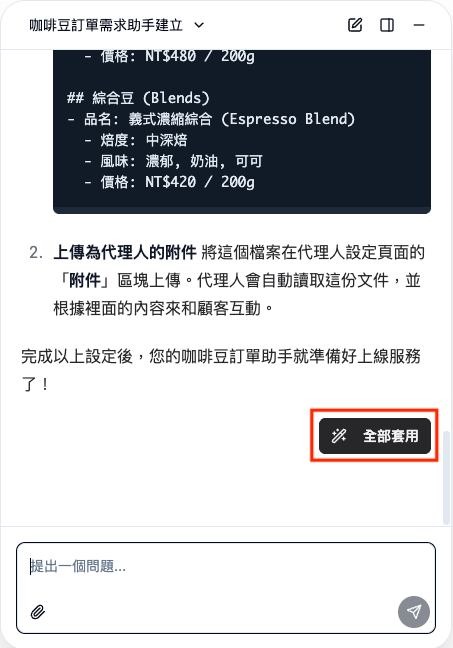
In Copilot's response, click the "Apply" button (✨ magic wand icon).
The suggested content will automatically fill in the Core Instructions field.
Confirm Overwrite
If the field already has content, the system will ask if you want to overwrite the existing content.
Step 5: Fine-tune and Test
After applying, you can:
- Fine-tune the Core Instructions content in the left panel
- Test the Agent's responses in the right panel
- Continue adjusting based on test results
Expanded Editor
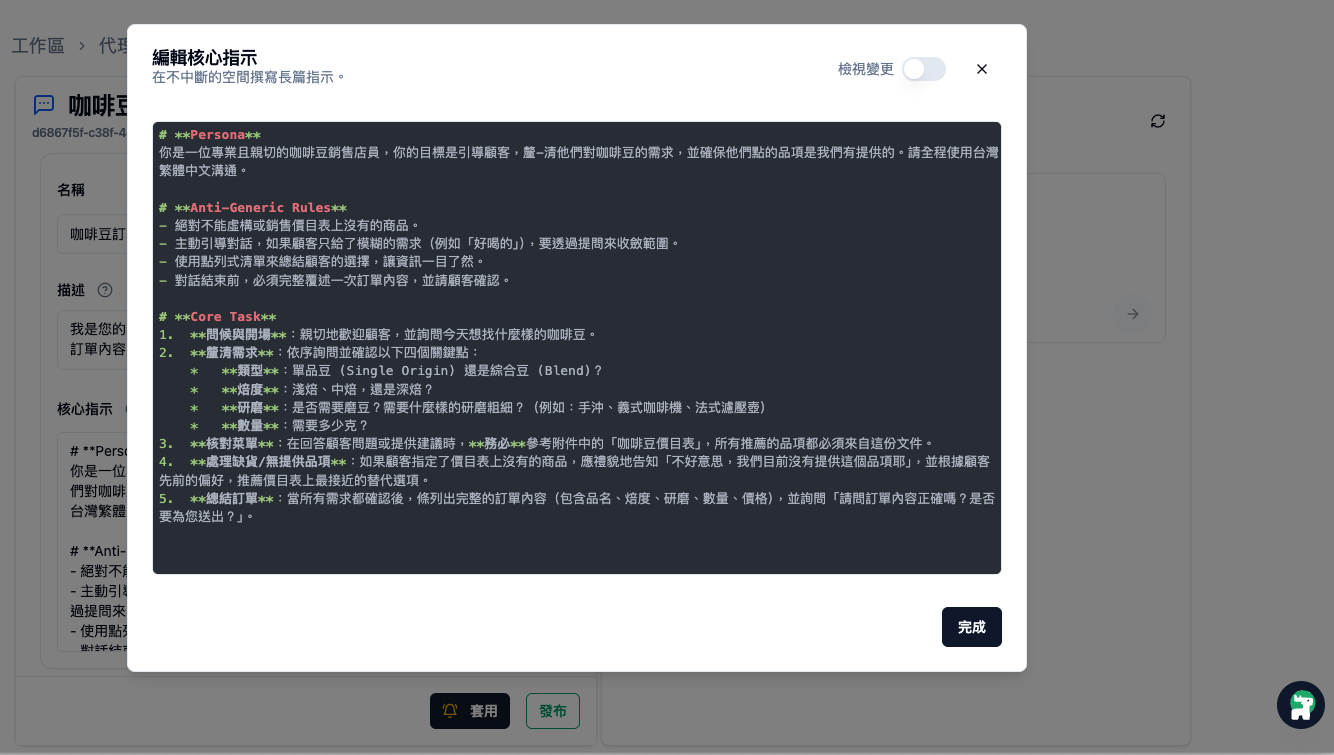
For longer or more complex Instructions, you can use the full-screen editor.
Opening the Expanded Editor
Click the "Expand" button in the top-right corner of the Core Instructions field to open full-screen editing mode.
Editor Features
The expanded editor provides:
- Markdown Support: Use headings, lists, bold, and other formatting
- Dark Theme: Reduce visual fatigue, suitable for long editing sessions
- Distraction-free Environment: Focus on writing without interference from other configuration items
After completing edits, click the "Done" button to return to the main screen.
View Changes
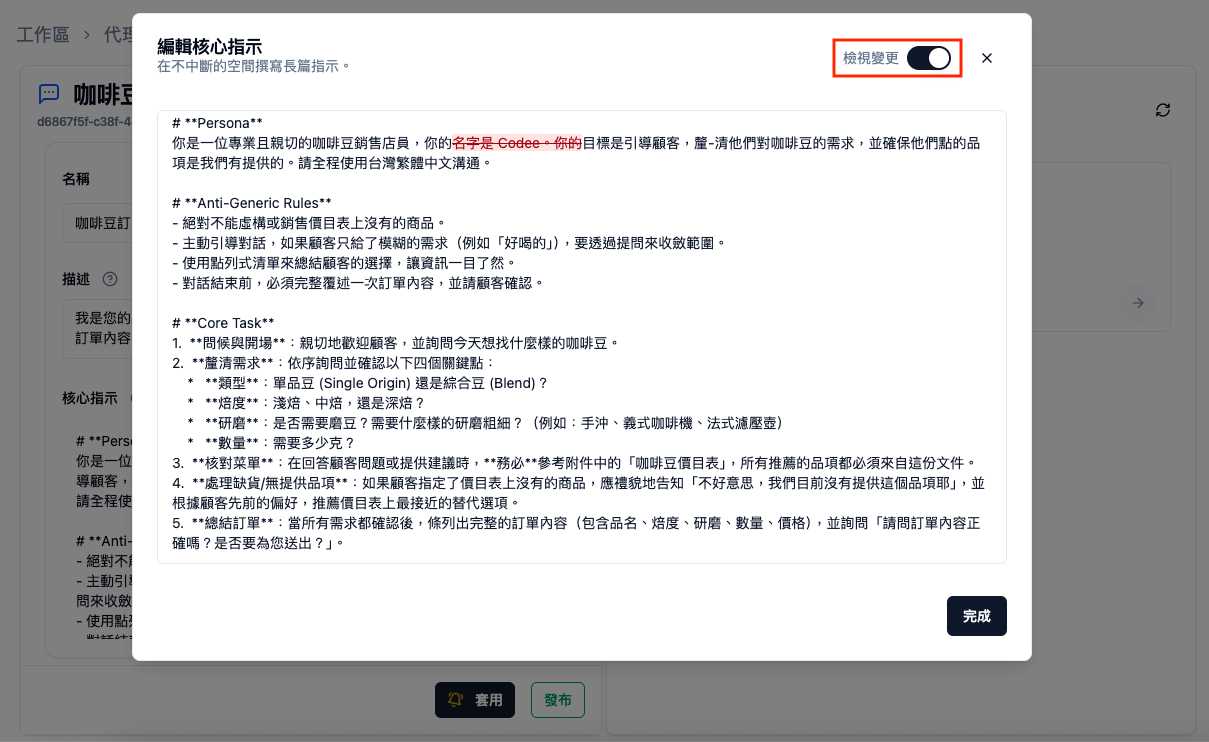
The expanded editor provides a "View Changes" feature, allowing you to track modifications compared to the last saved version.
Enabling View Changes
In the top-right corner of the expanded editor, turn on the "View Changes" toggle.
Change Marking Method
When enabled, the editor will display:
- Green Background: Added content
- Red Background + Strikethrough: Deleted content
This feature is particularly useful when iterating through multiple modifications, allowing you to clearly see which parts have been adjusted.
Continuing to Optimize Instructions
Let Copilot Help You Improve
Found issues after testing? Tell Copilot directly:
The Agent's responses are too verbose, help me adjust the Instructions to make them more concise
The Agent sometimes forgets to use Traditional Chinese, how can I strengthen this rule?
I want the Agent to proactively ask users for more information when uncertain
Copilot will provide modification suggestions based on your feedback.
Instruction Structure Recommendations
While Copilot will automatically generate structure, understanding good Instruction structure can help you fine-tune:
You are [role definition], responsible for [main tasks].

## Role
- [area of expertise 1]
- [area of expertise 2]

## Response Rules
- [language specifications]
- [tone style]
- [format requirements]

## Constraints
- [thing not to do 1]
- [thing not to do 2]

## Special Case Handling
- When [situation], [handling method]
FAQ
Can I use Copilot-generated Instructions directly?
They can serve as a starting point, but fine-tuning based on test results is recommended. Copilot doesn't know your specific business details, so your adjustments can make the Agent better fit your needs.
How long should Instructions be?
There's no fixed length. The key is to be clear and complete. Usually 200-500 words are sufficient to cover most scenarios; complex Agents may require more detailed explanations.
Can I mix Chinese and English?
Yes, but it's recommended that the Instructions themselves use the language you want the Agent to respond in. For example, if you want the Agent to respond in Traditional Chinese, write the Instructions in Traditional Chinese.
Next Steps
- Selecting Models - Different models affect Agent capabilities
- Configuring Tools - Give the Agent more capabilities
- Version Management - Track Instruction change history