Version Management
Version management allows you to track Agent change history, making it easy to compare, roll back, and collaborate.
Why Version Management is Needed
- Track Changes: Know who changed what and when
- Quick Rollback: Switch back to previous versions when issues arise
- Team Collaboration: Avoid conflicts when multiple people edit
- Stable Publishing: Distinguish between "in-editing" and "official public" versions
Creating an Agent and Initial Version (v1)
Before creating an Agent, only the "Create" button appears at the bottom of the editor.
- Fill in required fields like name and Core Instructions.
- Click "Create".
- The system automatically generates the first version (v1).
Version Notes
- You can provide version notes when saving subsequent versions, but when creating the first version (v1), there's no version note input window.
Updating Settings and Creating New Versions
After creating an Agent, whenever you modify settings (like Core Instructions, model, tools, etc.), you can save them as a new version using the "Apply" function.
Step 1: Click Apply
When setting changes are detected, the "Apply" button at the bottom lights up.
Step 2: Fill in Version Notes
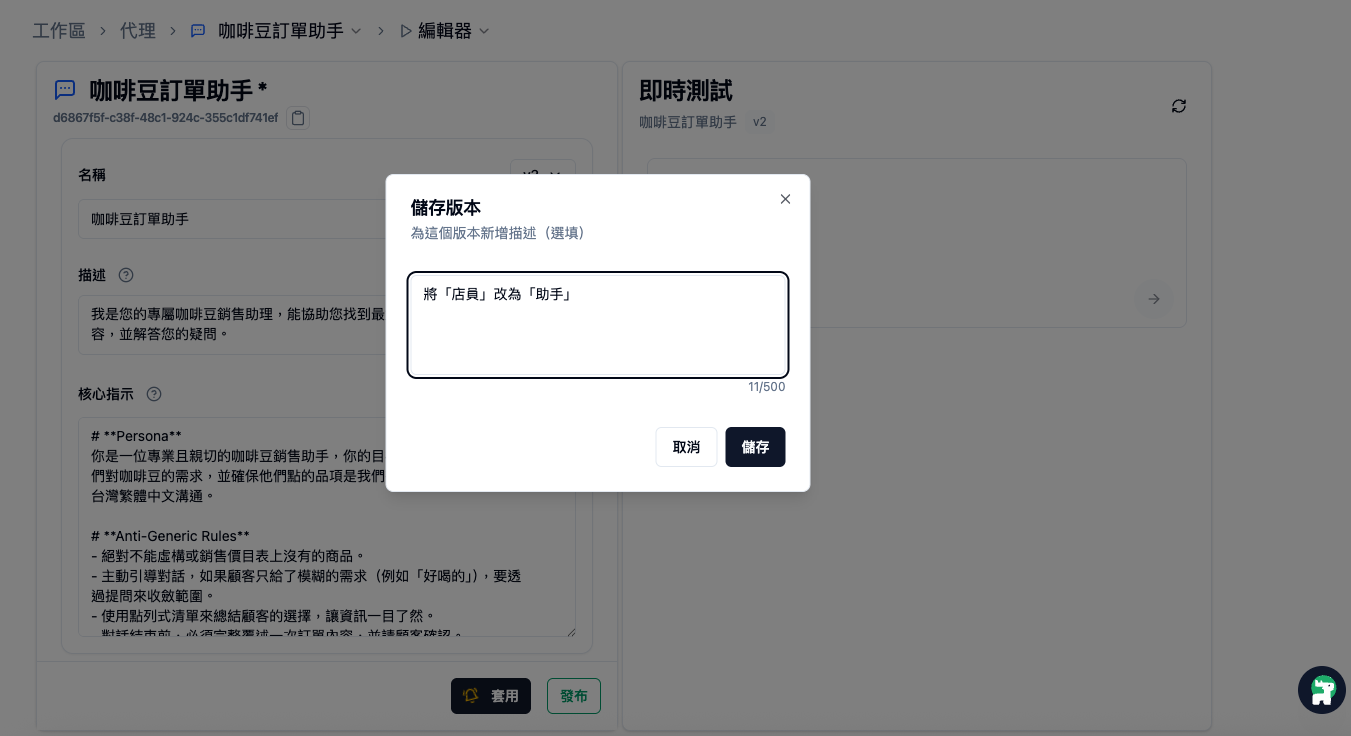
After clicking "Apply", a "Save Version" dialog appears.
- Version Notes (Optional): It's recommended to describe the main content of this change (e.g., adjust response tone, add web search tool). You can save without filling this in.
Good Version Note Examples
- "Added web search tool, adjusted response tone to be more friendly"
- "Fixed product specification errors, updated attachments"
Step 3: Confirm Save
Click "Save", and the system will automatically increment the version number (e.g., v1 → v2) and set it as the current editing version.
Viewing Version History
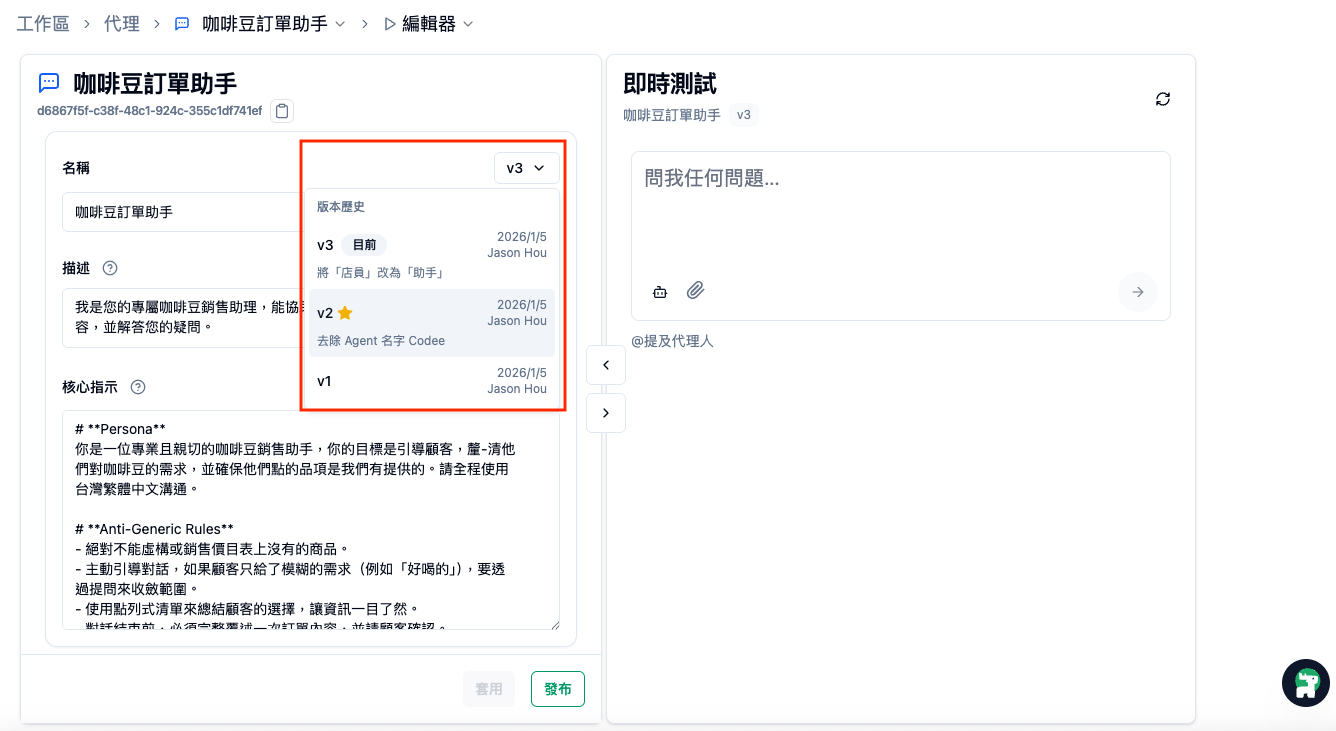
You can view all historical records in the version dropdown menu to the right of the Agent name field in Agent Editor.
- Version List: Shows version numbers (v1, v2...), creation date, and creator.
- Current Marker: The version currently loaded in the editor is marked with "(Current)".
- Star Marker (★): Versions with a gold star indicate that version is currently "Published" for users.
- Version Notes: Shows the version's change notes. If notes are long, hover over the text to see the complete content via Tooltip.
Comparing Version Differences (Track Changes)
When adjusting "Core Instructions", you can use Track Changes to confirm differences from the baseline version.
- Click the "Expand" button next to the Core Instructions block to enter focused editing mode.
- Turn on the "Track Changes" toggle in the top toolbar.
- Difference Display:
- Green Background: Added content.
- Red Strikethrough: Deleted content.
The baseline version is updated after "entering the editor", "switching historical versions", or "successfully saving (applying)", so the "baseline version" represents "the original state at the start of that editing session".
Cannot Edit While Viewing Changes
- When "Track Changes" mode is enabled, the Core Instructions editing area becomes read-only to ensure difference display accuracy.
- To continue editing, please turn off this feature first.
Publishing Versions
"Publishing" means marking a specific version as the official public version.
- Select the version you want to publish in the dropdown (or the version you're editing).
- Click the "Publish" button at the bottom.
- Confirm in the "Confirm Publish" dialog that appears.
- That version receives a star marker (★) and immediately takes effect in all related Channels.
Only one version system-wide can have a star at a time. When changing the published version, the original marker automatically moves to the newly published version.
Rollback and Restore
You can switch back to old versions at any time to view them, or use an old version as a basis for modifications and generate a new version.
- Switch Versions: Select the target version from the dropdown, and the form immediately loads that version's settings.
- Restore and Save:
- If you don't modify the content at all, the "Apply" button cannot be clicked.
- If you make new edits after loading an old version, you can click "Apply" and enter version notes, which creates a completely new version number.
- Directly Publish Old Version: After switching to an old version and confirming it's correct (no modifications needed), you can directly click "Publish". The star marker moves to that old version, immediately making it effective.
Rollback doesn't delete any version history; all processes create new records or move the publish marker, ensuring complete history.
Best Practices
Apply Frequently
- After each major adjustment, it's recommended to click "Apply" to save as a new version, then start testing to ensure the modified new version works as expected.
- Write good version notes for future tracking and team development. Version notes should include main modification content or reasons for changes.
Stable Publishing
- After confirming in the test environment, click "Publish" to move the star to that stable version.
- Before large-scale modifications, first confirm whether the currently published version (star version) needs backup notes.
Team Collaboration
- Check the latest version in the dropdown before editing.
- Discuss major changes before executing
- Avoid multiple people editing the same Agent simultaneously; the person who saves (applies) later will create a new version. Communication and coordination are recommended.
FAQ
Can versions be deleted?
Currently, deleting existing versions is not supported. This is to maintain complete change history and system tracking.
Will other team members' edits overwrite my changes?
Drafts are shared; the person who saves later will overwrite the earlier draft. It's recommended to coordinate editing times or confirm no one else is modifying before editing.
Why can't I find the 'Track Changes' button?
Please first click "Expand" in the top-right corner of Core Instructions to enter full-screen editing mode, and the button will appear in the top toolbar.
Can version numbers be customized?
Currently, version numbers are automatically incremented (v1, v2, v3...) and cannot be customized. You can mark important milestones in version notes.
Can I save after rolling back to an old version without modifying it?
No, the system detects whether content has changed. If you don't modify but want that version to take effect, directly click "Publish".
Can I see changes for each field?
Currently, "Track Changes" only supports the Core Instructions (Instruction) field. If you change other fields, it's recommended to record them in version notes.
Why hasn't the Agent content I shared been updated?
Check whether the latest version you "applied" has been "published" (whether it has a star marker). Users only see the starred version.
Next Steps
- Publishing Agents - Learn more about the publishing process
- Back to Editor - Continue editing and testing
- Back to Overview